The Largest Curatorial Library
With Mobile Ui Kit

Flutter 32 Error State App Screens for iOS & Android

Flutter 32 Error State App Screens for iOS & Android

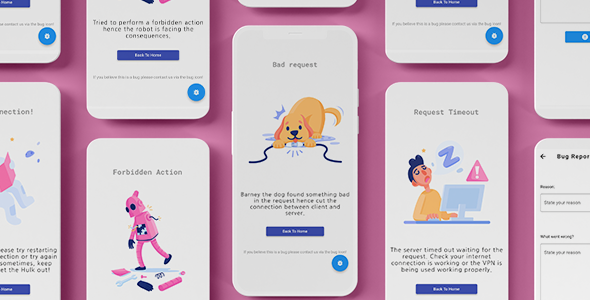
In many cases your application may not work properly and produce errors. Some of them notifies users about the errors and tells to keep patience. Some application just kept silent about the errors and does nothing. This is really boring and not a good practice. Instead of doing nothing or showing a boring text that something went wrong, why not show a properly illustrated error page? This will make your application look good.

Mobiokit - HTML Mobile UI Kit

Mobiokit - HTML Mobile UI Kit

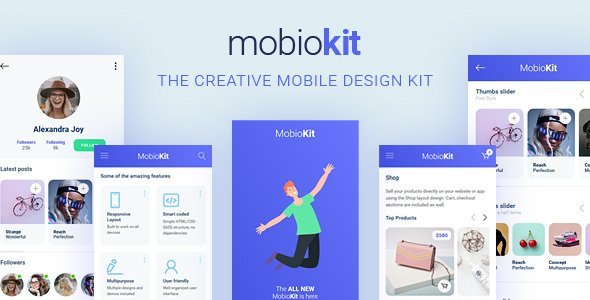
MobioKit is an HTML mobile template that will give you the perfect starting point in creating the layout design of your mobile website, mobile web app and mobile native app. The creative design and the amazing features will be perfect in making your mobile project unique. This mobile UI Kit includes all the necessary designs to create a mobile shop, a mobile social app, a mobile fitness app, a business related mobile app, and with a bit of imagination from your side on any mobile project.

Travelion - Travel & Vacation UI KIT

Travelion - Travel & Vacation UI KIT

How To Use Sketch Files You just need to download some appropriate images from the image bank or given below links (www.shutterstock.com or www.pexels.com ). Just place the images into sketch file. You can also edit any text, Navigation Menu, color or any font file by double click and change the same. Make sure your image sizes are as per the mentioned sizes in the sketch file. You can also download the trial version of sketch from here. https://www.sketchapp.com/ Sketch Version 40+ Graphic Used Many thanks for these great images to: www.shutterstock.com Note: All images are just used for Preview Purpose Only. They are not part of the website template and NOT included in the final purchase files.

Newsmaker - News & Editorial UI KIT

Newsmaker - News & Editorial UI KIT

How To Use Sketch Files You just need to download some appropriate images from the image bank or given below links (www.shutterstock.com or www.pexels.com ). Just place the images into sketch file. You can also edit any text, Navigation Menu, color or any font file by double click and change the same. Make sure your image sizes are as per the mentioned sizes in the sketch file. You can also download the trial version of sketch from here. https://www.sketchapp.com/ Sketch Version 40+ Graphic Used Many thanks for these great images to: www.shutterstock.com Note: All images are just used for Preview Purpose Only. They are not part of the website template and NOT included in the final purchase files.

Musica - Music , Video & Entertainment UI KIT for Sketch

Musica - Music , Video & Entertainment UI KIT for Sketch

How To Use Sketch Files You just need to download some appropriate images from the image bank or given below links (www.shutterstock.com or www.pexels.com ). Just place the images into sketch file. You can also edit any text, Navigation Menu, color or any font file by double click and change the same. Make sure your image sizes are as per the mentioned sizes in the sketch file. You can also download the trial version of sketch from here. https://www.sketchapp.com/ Sketch Version 40+ Graphic Used Many thanks for these great images to: www.shutterstock.com Note: All images are just used for Preview Purpose Only. They are not part of the website template and NOT included in the final purchase files.

MapNavi - Maps & Navigation UI KIT for Sketch

MapNavi - Maps & Navigation UI KIT for Sketch

How To Use Sketch Files You just need to download some appropriate images from the image bank or given below links (www.shutterstock.com or www.pexels.com ). Just place the images into sketch file. You can also edit any text, Navigation Menu, color or any font file by double click and change the same. Make sure your image sizes are as per the mentioned sizes in the sketch file. You can also download the trial version of sketch from here. https://www.sketchapp.com/ Sketch Version 40+ Graphic Used Many thanks for these great images to: www.shutterstock.com Note: All images are just used for Preview Purpose Only. They are not part of the website template and NOT included in the final purchase files.

Cahoome - Smart Home UI Kit

Cahoome - Smart Home UI Kit

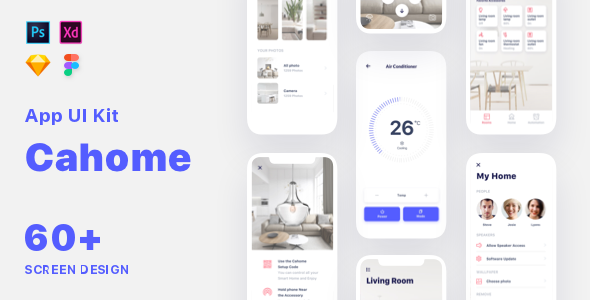
Introduction: NEW UPDATE: Nov 29, 2019 Cahoome UI Kit is a solution for Smart Home and IoT, able to inspire anyone and involve into a highly-productive cooperation. The exuberance of colors and a Research UI/UX of 250+ elements and 60+ Screen in the UI kit reaches the “perfection” point. Vector shapes let the expressiveness out and focus all eyes on it. Working in Sketch, Photoshop, Figma and Adobe XD. The inexhaustible flow of elements and 60+ Screen on top of this, foster the original ideas in minds of everyone, who observes it. The Cahoome UI kit is great for Smart Home App, IoT App and any creative platforms, pursuing the aim to strike their audience with a powerful flow of colors. All layers and symbols are neatly grouped, named and organized. It also contains detailed instruction how to customize colors, fonts and styles.

Lemux Network Mobile UX UI News and Magazine HTML Template

Lemux Network Mobile UX UI News and Magazine HTML Template

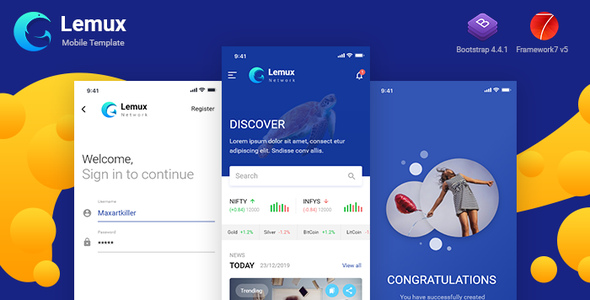
Lemux Multipurpose Mobile UX UI HTML Template, Lemux is HTML, CSS and js templates. We have covered major HTML elements. Also customized widget elements with this. We’ll also expand it and always HTML 5 and major use of CSS3 we targeted. The framework we have used are bootstrap 4.4.1 version and Framework 7 v5.1.0. So its uses flex-box properties and gives much smooth responsive utilities. The framework itself comes with responsive adjust into major devices small to large. Bootstrap templates and Framework 7 designs also have wide range of Mobile HTML Template. As the latest technology and framework targeted it comes with Major all latest versions of browser Chrome, Safari, Firefox, IE 10+, Edge and opera. We also consider devices layout will be responsive which gives new touch.